

BadWrite
Download the latest version now
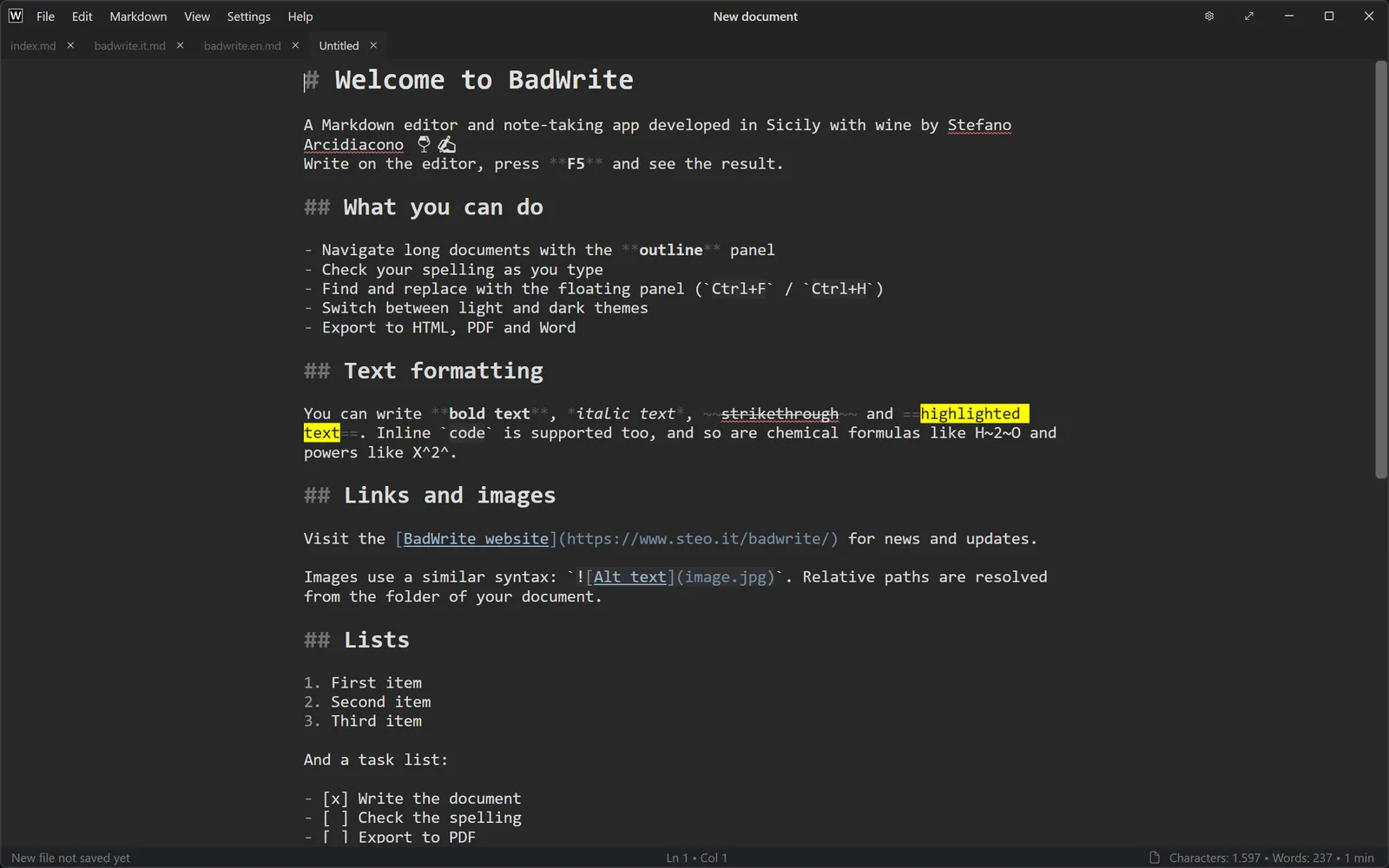
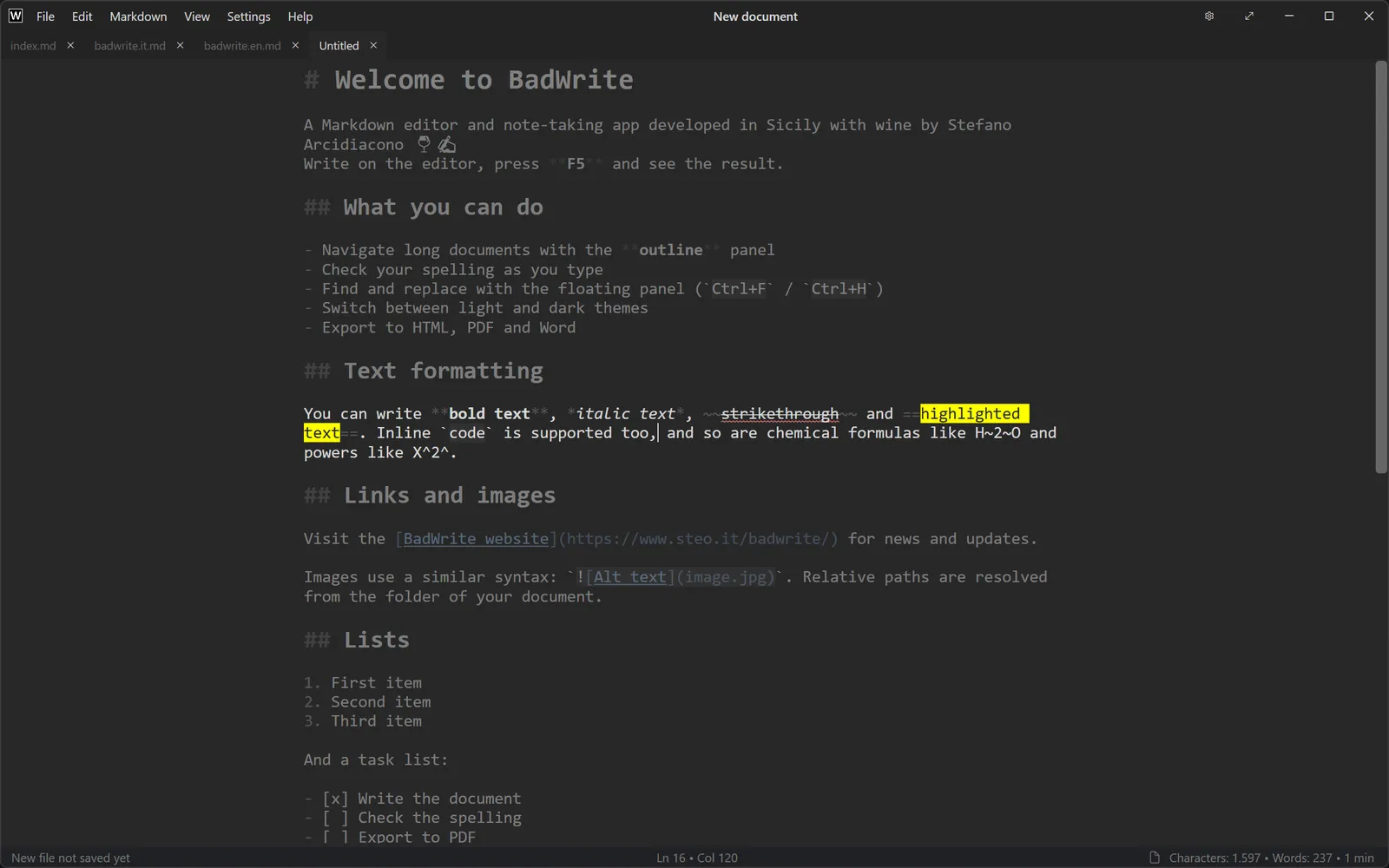
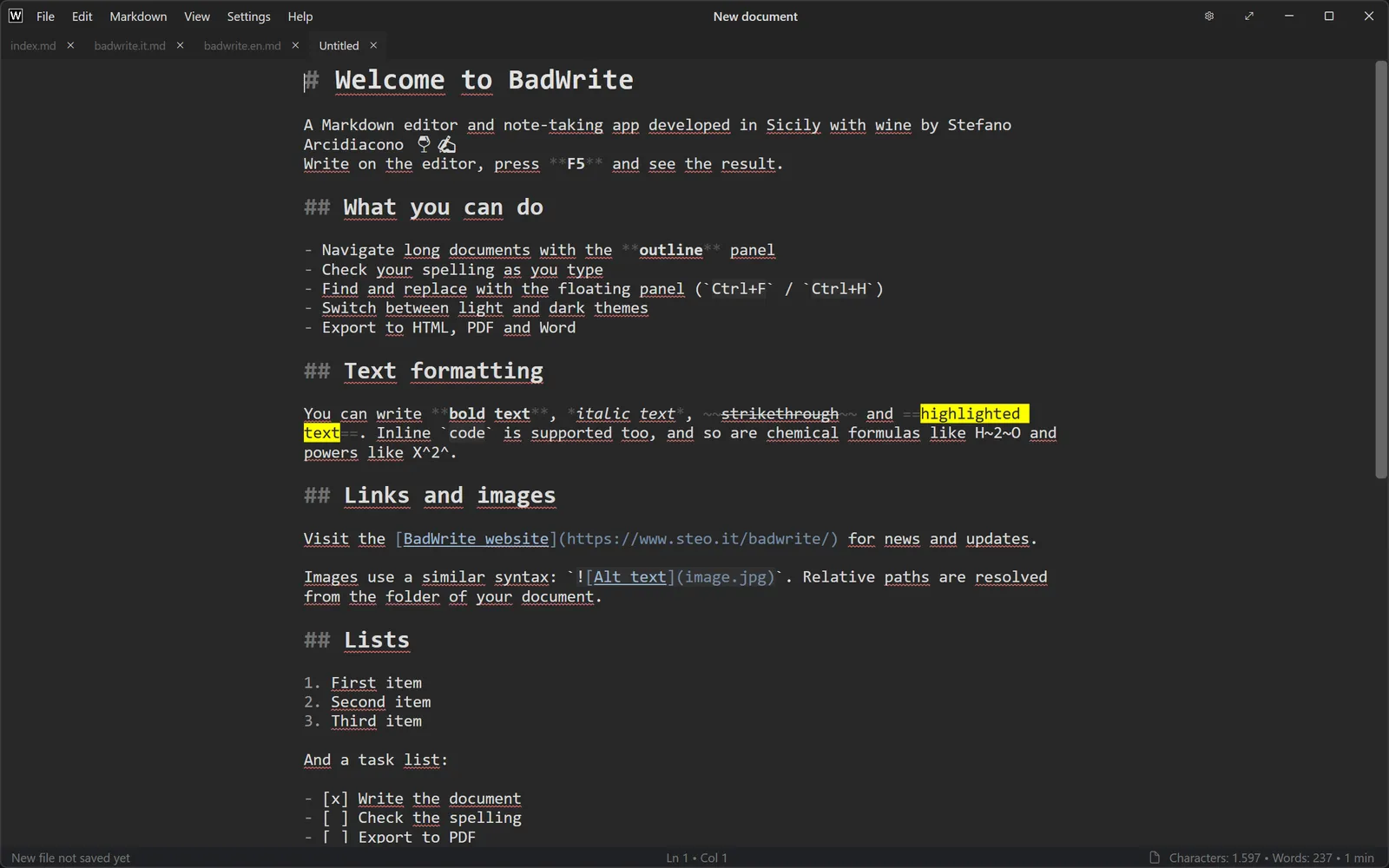
BadWrite is my vision of a Markdown editor for Windows, featuring an integrated menu in the title bar, a large editor area, and a status bar with the most important information.
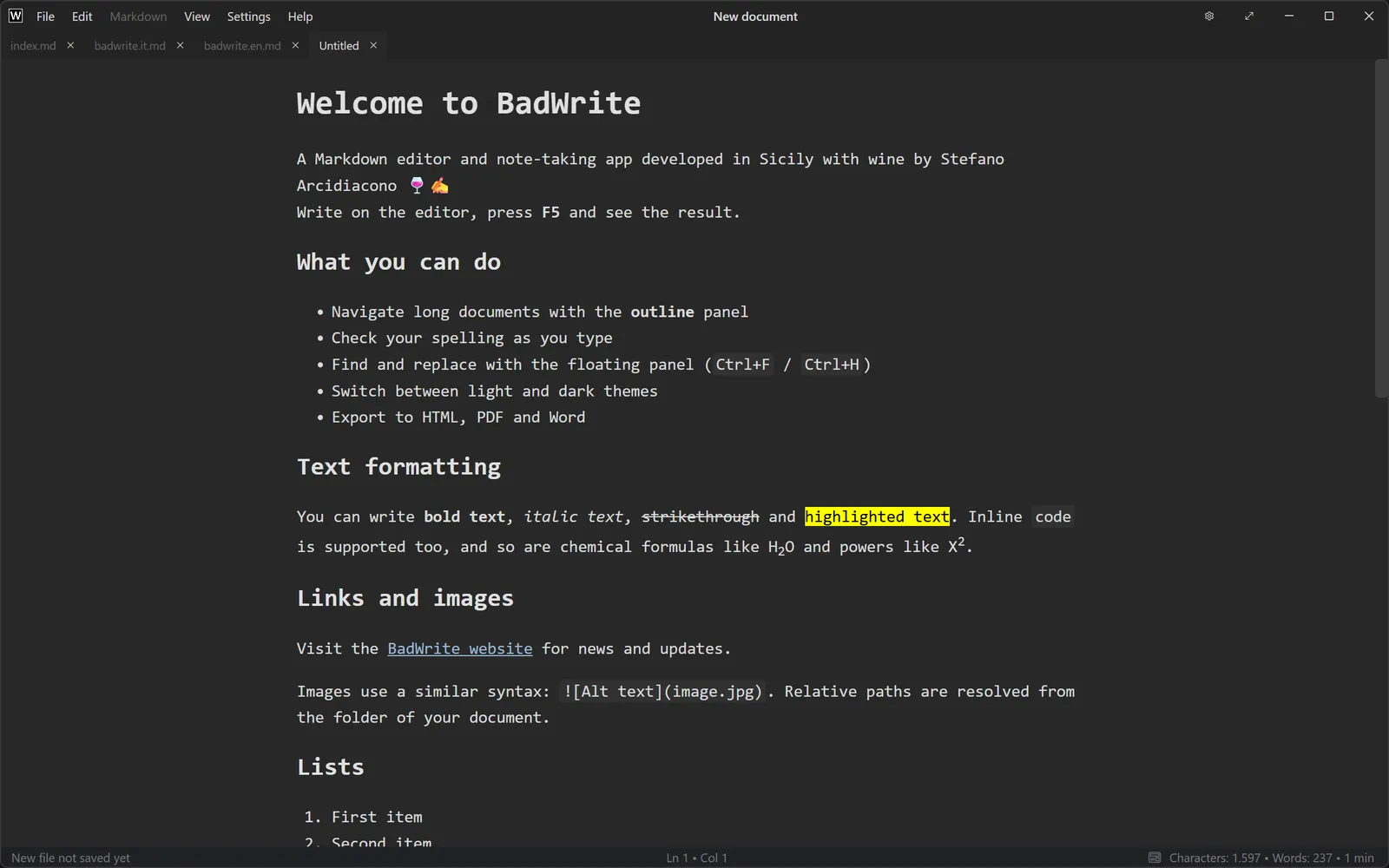
Write your text using the Markdown menu if you forget a tag; press F5 to view the formatted result with the same style as the editor.
When greater concentration is needed, switch to full screen with F11 and activate focus mode with F8, or enable typewriter mode with F9 to have the paragraph you're writing vertically centered.
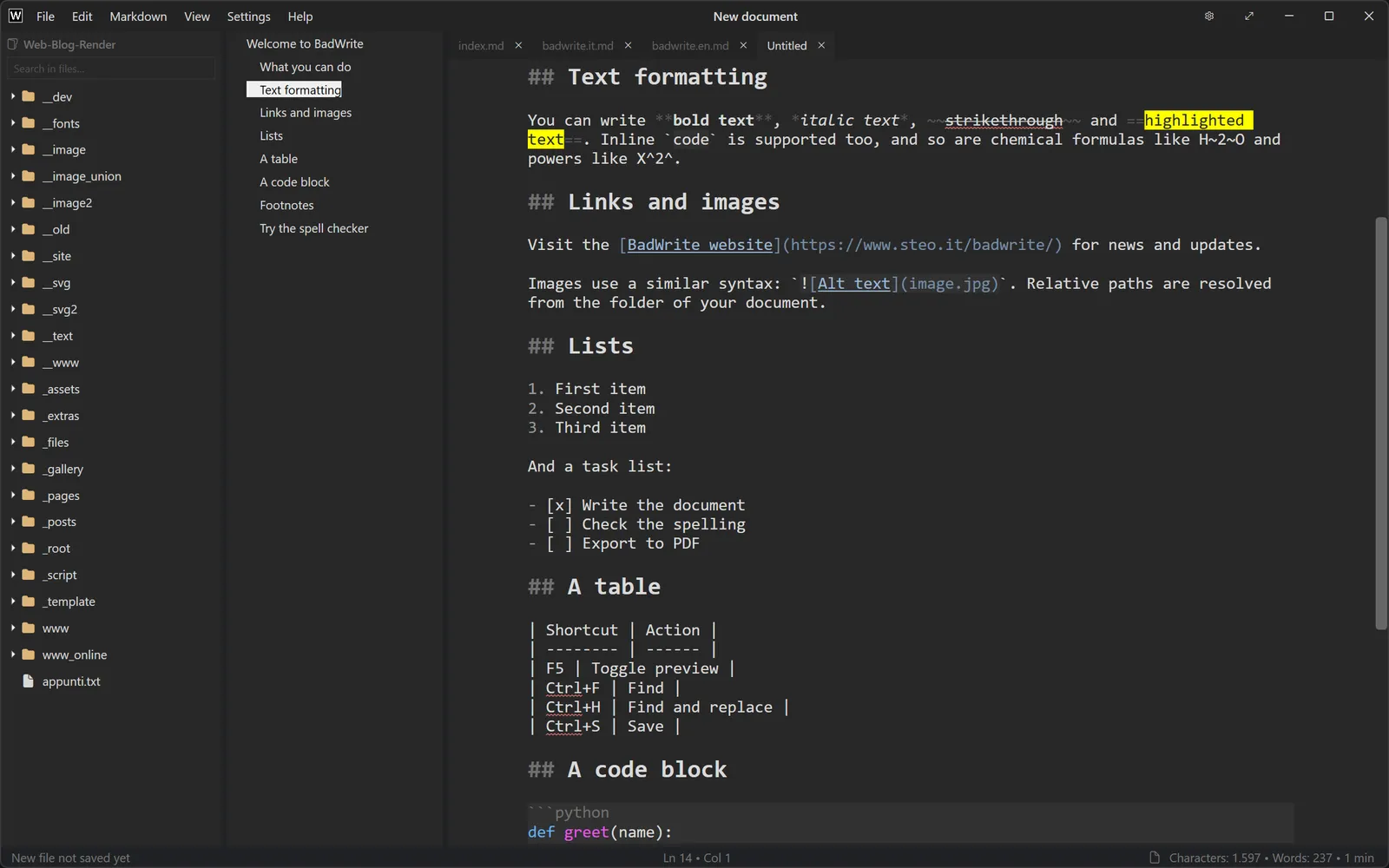
Need to insert images? Just open the File Explorer with Ctrl+Shift+E, hover over an image to see its thumbnail, drag it onto the document to get the corresponding tag. From this panel, you can open text files, but also search in real time on all files present in the selected folder and sub-folders.
You can preview an image or even a PDF file in the preview.
When the text starts to become important, use the Document Structure Ctrl+Shift+O to view an index based on header tags. Through this panel, you can navigate both in the editor and the preview, with the position between the two remaining synchronized.
BadWrite supports spelling check during typing, using Hunspell dictionaries. Some languages are included; you can add others by downloading the dictionaries (.dic/.aff files) from the internet and placing them in the program's Dictionaries folder. The language for spelling check can be set via the menu, but it is automatically changed if the file contains Frontmatter with another "lang" setting, convenient for not having to manually change the setting when working on multiple files with different languages.
After finishing your work or to continue it in another program, you can export to HTML format (with embedded or external style-sheet), PDF, or even DOCX.
The interface, currently available in English and Italian, can be graphically customized with 13 different themes.
Local Artificial Intelligence
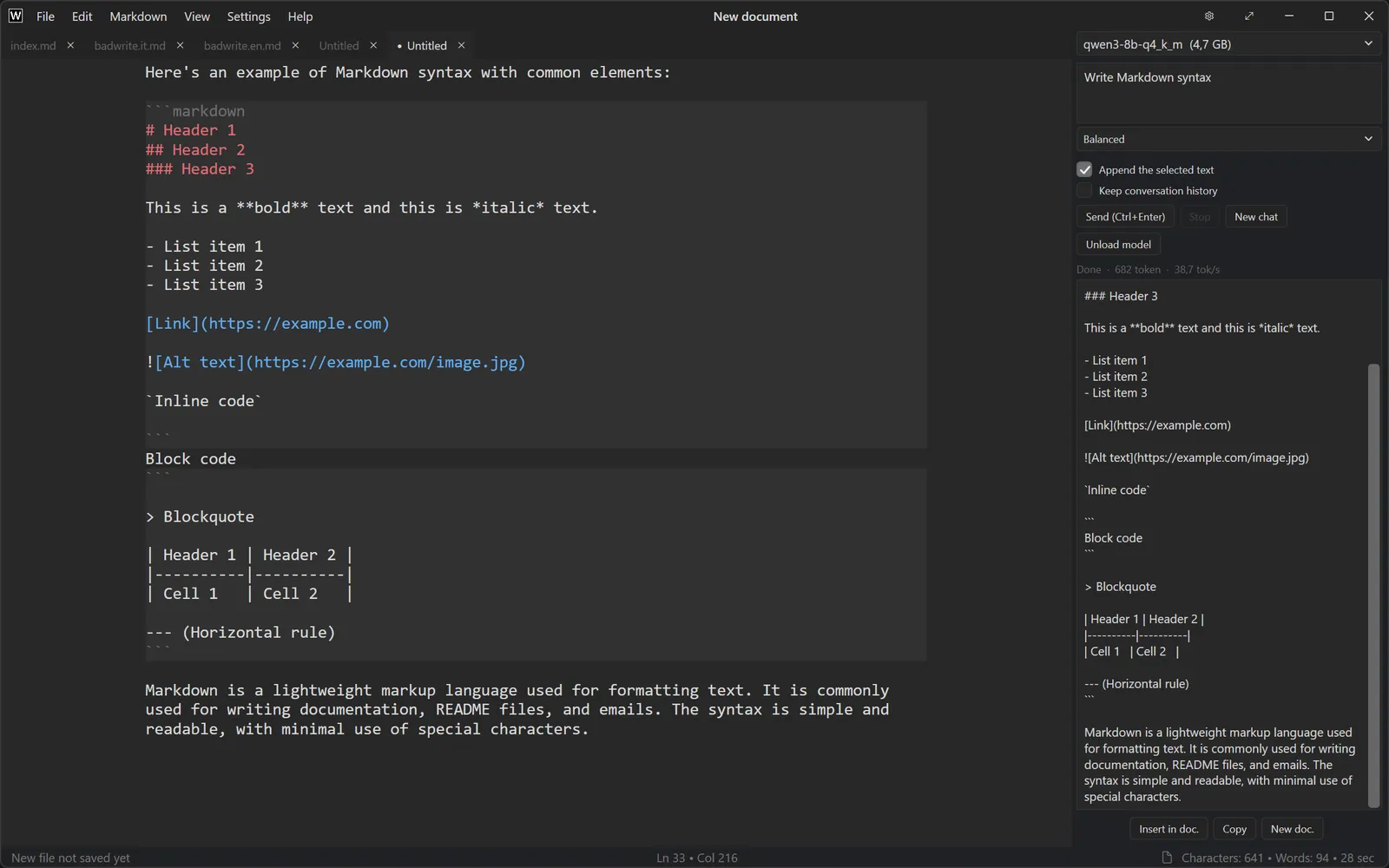
BadWrite can interact with local AI models in GGUF format via LLamaSharp, using GPU acceleration through Vulkan if available.
Through the menu or the shortcut Ctrl+Shift+A, you can open the dedicated panel to choose the available model (from settings, you need to specify the folder containing them), write commands while working on the selected text or what you paste. The editor's context menu includes a series of quick commands for interacting with the AI model.
Personally, I have tried several models. On my PC with an RTX 4060 GPU with 8GB of VRAM, I can run Qwen3-8B-Q4_K_M-GGUF smoothly, while for "lightweight" tasks I often use Llama-3.2-3B-Instruct-Q4_K_M-GGUF . In any case, on Hugging Face there's only the embarrassment of choice.
The model is trained with an initial prompt to work within a markdown editor, maintaining its syntax.
Note: BadWrite attempts to read parameters to set from the model file, then adjusts based on available VRAM to determine how many layers of the model can be loaded onto the GPU, leaving space for the system, cache, and conversation.
Screenshot
Download
⚠️ Warning: The current version of Badwrite is still a beta. I have never lost any text documents because of it, but I still ask you to be cautious, make sure to back up your data before using it!
Get the latest version from the GitHub page.
- Download the
.zipfile from the latest release. - Extract it to any folder.
- Run
BadWrite.exe.
The SHA-256 checksum of each file is listed in the release notes, so you can verify your download.
Windows SmartScreen
BadWrite is not code-signed yet, so Windows may show "Windows protected your PC" the first time. Click More info → Run anyway. You can compare the checksum with the one in the release notes before running it.
Requirements
- Windows 10 or 11 (64-bit)
- .NET 10 Desktop Runtime (x64, if not already installed)
- Microsoft Edge WebView2 Runtime (already included in Windows 11 and in up-to-date Windows 10)
Shortcuts
| Menu | Command | Shortcut |
|---|---|---|
| File | New | Ctrl+N |
| File | New Window | Ctrl+Shift+N |
| File | Open | Ctrl+O |
| File | Save | Ctrl+S |
| File | Save As | Ctrl+Shift+S |
| File | Ctrl+P | |
| Edit | Undo | Ctrl+Z |
| Edit | Redo | Ctrl+Y |
| Edit | Cut | Ctrl+X |
| Edit | Copy | Ctrl+C |
| Edit | Paste | Ctrl+V |
| Edit | Select All | Ctrl+A |
| Edit | Find | Ctrl+F |
| Edit | Replace | Ctrl+H |
| Edit | Format Table | Ctrl+Shift+T |
| Edit | Copy HTML to Clipboard | Ctrl+Shift+H |
| Markdown | Heading 1 | Ctrl+1 |
| Markdown | Heading 2 | Ctrl+2 |
| Markdown | Heading 3 | Ctrl+3 |
| Markdown | Heading 4 | Ctrl+4 |
| Markdown | Heading 5 | Ctrl+5 |
| Markdown | Heading 6 | Ctrl+6 |
| Markdown | Quote | Ctrl+Shift+Q |
| Markdown | Bold | Ctrl+B |
| Markdown | Italic | Ctrl+I |
| Markdown | Underline | Ctrl+U |
| Markdown | Strikethrough | Ctrl+Shift+K |
| Markdown | Inline Code | Ctrl+Shift+I |
| Markdown | Code Block | Ctrl+Shift+C |
| Markdown | Link | Ctrl+K |
| View | HTML Preview | F5 |
| View | Full Screen | F11 |
| View | Show Structure (Outline) | Ctrl+Shift+O |
| View | Show Explorer | Ctrl+Shift+E |
| View | Show AI Panel | Ctrl+Shift+A |
| View | Show Line Numbers | Ctrl+Shift+L |
| View | Focus Mode | F8 |
| View | Typewriter Mode | F9 |
| View | Increase Font Size | Ctrl+Num + |
| View | Decrease Font Size | Ctrl+Num - |
| View | Reset Font Size | Ctrl+Num 0 |
Data folder
The folder "Index" contains SQLite databases used to search for files in open folders. Deleting these files is safe, as they will be automatically rebuilt when the respective folder is reopened. Note that the databases are in plain text in the user's Windows folder, so they are still protected if you use a password to access Windows.
The "Recovery" folder contains unsaved documents. Deleting its contents will permanently remove any recoverable unsaved work.
Feedback
This is a beta, and your feedback is what makes it better.
- Found a bug or have an idea? Open an issue .
When reporting a bug, please include the BadWrite version (shown in Help → About), your Windows version and the steps to reproduce it.
License and credits
BadWrite is © Stefano Arcidiacono. It is free to use, but it is not open source:
all rights are reserved. Please do not redistribute modified versions;
to share BadWrite, link to this page.
BadWrite uses open-source components, listed with their licenses in THIRD-PARTY-LICENSES.txt and in Help → About.